Make the invoice, export it as a PDF, then attach that PDF to a message. On an iPhone that is the share sheet: tap share, choose Messages, pick the contact, add a line of text, send. What you should not do is type the amount into the message and call it an invoice.
The steps on an iPhone
- Finish the invoice and get it into PDF form. If you built it in Pages or Numbers, export to PDF; if you used an invoicing app, that is what it produces.
- Tap the share button — the square with the arrow. The share sheet opens with your recent contacts along the top.
- Choose Messages (or WhatsApp, or whichever app you and this customer actually use).
- Pick the person, checking you have the right thread. An invoice sent to the wrong number is a small privacy incident, not just an embarrassment.
- Write two lines, not ten. See below.
- Send, then confirm the attachment appears as a document in the thread rather than as a failed upload.
One invoice, from the PDF to the thread
Here is the hand-off with a real document: invoice INV-1049 for $730.75, made in Invoice Tiger for a fictional customer, Riverside Cafe.
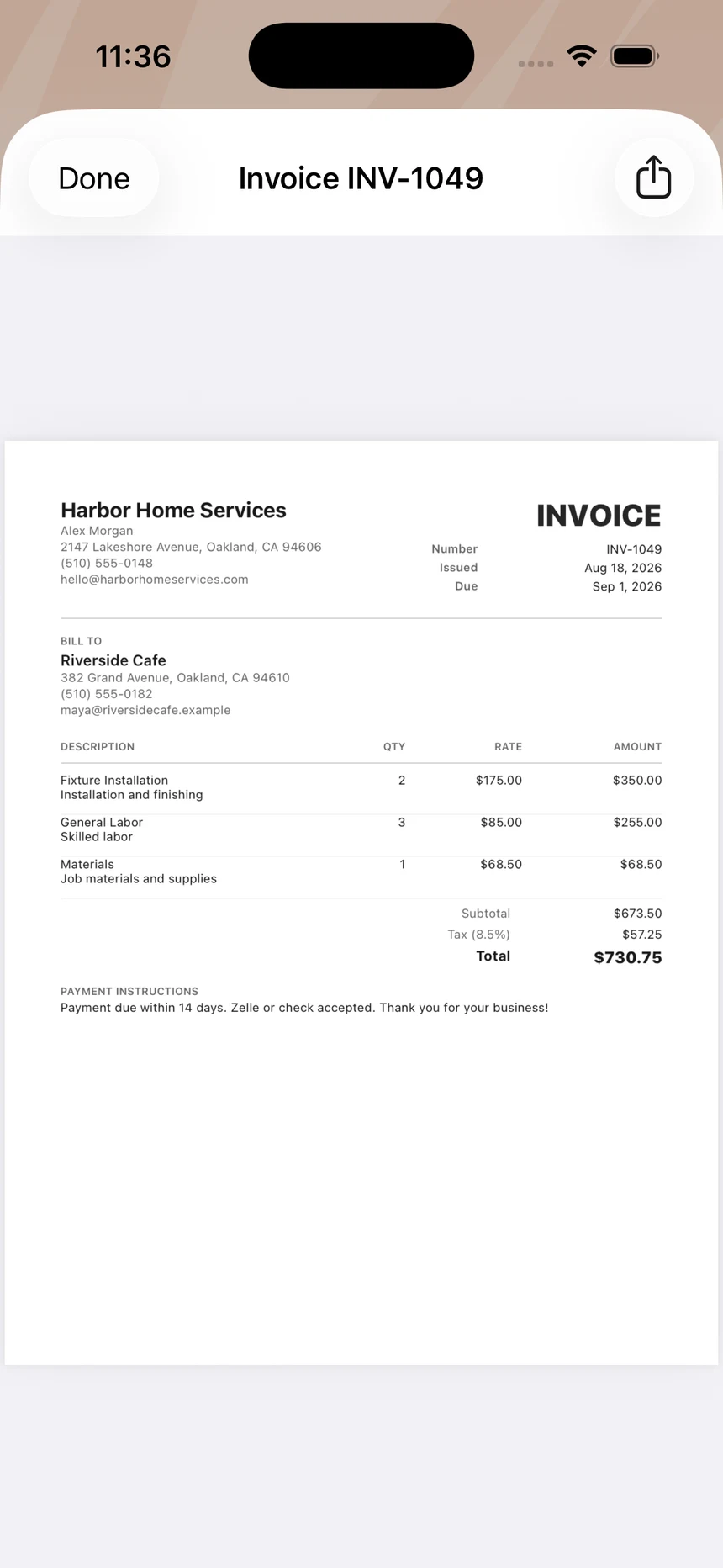
The finished invoice, as a PDF on the phone. Business details, the customer, three lines of work, tax, the total and the payment instructions — everything the customer needs is on the document, not in the message. The share button is at the top right.
Tapping share opens the iOS share sheet. Choosing Messages opens a new message with the PDF already attached, as a file called Invoice-INV-1049-Riverside-Cafe.pdf; add the recipient and your two lines, and send. That name matters more than it looks: it is what the customer sees in the thread, and what their accountant sees when it is forwarded on.
In Invoice Tiger, finishing the send marks the invoice Sent and locks it, so the copy on your phone is exactly the one the customer has. If you back out of the share sheet instead, nothing changes and it stays an editable draft.
Blue bubble or green: whether the PDF gets there
The colour of the customer’s thread tells you which service Messages is about to use, and that decides how much you can rely on the attachment.
- Blue is iMessage. Apple lists documents among the things it sends, and a PDF arrives as a file the customer can open, save and forward.
- Green is RCS or SMS/MMS — usually an Android phone, or an iPhone without iMessage. Apple describes both as sending texts, photos, videos and links, and does not list documents. Whether a PDF arrives intact depends on the carriers and the phone at the other end, so do not assume it did.
- Never a group thread. Apple notes that group SMS does not support multimedia attachments, and an invoice is not something the rest of the group should see anyway.
With a green thread, either ask the customer to confirm the PDF opened, or send it by email or WhatsApp — both are in the same share sheet. Keep the file small too: Invoice Tiger uses your logo at the size you picked it, so a full-resolution photo as a logo makes every invoice heavier than a document needs to be.
What to write with it
The message is not the invoice. Its whole job is to say what has arrived and what happens next, in the number of words someone reads on a lock screen.
Example
A message that does the job
Amount, reference, and how to pay. Nothing else.
Hi Dana — invoice for today’s work attached, $278.35, due 21 August. Bank details are on it, reference INV-0042. Thanks for the coffee.
Compare with: “Hi! Just wanted to follow up on the work we completed and send across the paperwork for your records, please let me know if you have any questions at all…” — which says nothing the attachment does not, and buries the amount.
Two mistakes worth avoiding
Sending a photo or screenshot instead of the file
A photograph of an invoice on a screen cannot be filed, forwarded to an accountant, or printed legibly. It also reads as improvised. If your invoice exists as a PDF, send the PDF; if it only exists on paper, a scan from the Notes app is a far better fallback than a snapshot taken at an angle.
Treating the message thread as your records
Threads get deleted, phones get replaced, and a customer’s copy is not your copy. Keep the document itself somewhere you control. If a query comes up in six months, you want to reopen exactly what you sent.
When to email instead
Texting is right for domestic customers and small trade jobs. It is the wrong channel when:
- The customer is a company. Their finance process runs on email, usually to an address that is not the person you dealt with. A text to your contact will sit in their phone doing nothing. The freelancers page covers what that process needs.
- The amount is large or the job was contentious. Email leaves a cleaner, more searchable trail for both sides.
- The PDF did not arrive. On a green thread the likely cause is the channel rather than the file. Email is the one built for attachments.
- You have never met them. An unexpected text with payment details in it is exactly what a scam looks like. Email first, then text if they prefer it.
Before you send
- The right customer, and the right thread.
- The amount in the message matches the amount on the document.
- Payment details are on the invoice itself, not only in the message.
- You have your own copy — an invoice is a record as well as a request.
If you have not built the invoice yet, making one on the phone is the step before this one, and payment terms covers what the due date on it should say.
Sources
- Apple Support — iPhone User GuideiOS sharing behaviour — the share sheet, sending attachments through Messages, and customising sharing options.
- Apple Support — What is the difference between iMessage, RCS, and SMS/MMS?That iMessage (blue bubbles) can send documents, that RCS and SMS/MMS (green bubbles) are listed as sending texts, photos, videos and links, that RCS needs iOS 18 and a carrier that supports it, and that group SMS does not support multimedia attachments.