For a one-off, open the free invoice generator in Safari, fill it in and download the PDF. If you want to design your own layout, use a Pages template and export it as a PDF. If you invoice every week, use an invoicing app that remembers your customers and prices — all three are walked through below.
Pick a method by how often you bill
| Method | Good for | The friction |
|---|---|---|
| Free generator, in Safari | A single invoice, today, with nothing installed | Saves nothing — every invoice starts from a blank form |
| Pages (or Numbers) | A handful of invoices a year, in a layout you control | You do the arithmetic, the numbering and the retyping yourself |
| An invoicing app | Anyone billing weekly or more | It is another app, and regular use costs money — Invoice Tiger’s price is below |
A PDF template you fill in, or a spreadsheet in Numbers, also works for identical jobs at identical prices. Both are the manual method with a different editor, and editing either on a phone screen is slower than it sounds.
The free generator, for a one-off
The invoice generatoron this site opens straight into an editable invoice in Safari. Add your details and the customer’s, type the work and prices, and it works out the totals and downloads a PDF you can attach to a message. Nothing is uploaded and nothing is saved, which is why it suits a single invoice and becomes painful for a weekly round: the next one starts from scratch.
Pages, step by step
Pages is free on every iPhone and its template chooser includes business documents. This takes about fifteen minutes the first time and five minutes thereafter.
- Open Pages and choose a template. The chooser groups predesigned templates by category; any clean business or letter template works — you are going to replace the content anyway.
- Put your details at the top. Business name, address, phone, email. Add your logo if you have one, sized so it does not dominate the page.
- Add the invoice number and dates. Give this one a number now and write it down somewhere you will find next time — numbering is the part of the manual method that goes wrong first. See invoice numbering for a scheme worth committing to.
- Insert a table for the work. Description, quantity, rate, amount. Keep it to the lines you actually need.
- Total it, and add your payment instructions. Pages will not do the arithmetic for you here, so check it. The payment details are not optional — they are the element most often left off.
- Save it as your own template. Pages lets you save a customised document back into the chooser, which means next month you start from your invoice rather than from Apple’s.
- Export as PDF and share. Never send the editable file — a customer opening a Pages document on a Windows machine sees nothing useful.
When the manual method stops being worth it
The tipping point is not about layout. Pages produces a perfectly good looking document. It is about the three things that get worse every time you do it by hand:
- Retyping customer details. The same name, address and email, typed again on a phone keyboard, for the fourth time this month.
- Keeping numbers straight. Once you are past twenty invoices, “what number am I on” becomes a real question, and answering it wrong is the one mistake that is genuinely awkward to undo.
- Finding an old one. A customer asks for a copy of something from March. In a folder of files called
Invoice copy 3.pages, that is a five-minute job.
Roughly speaking: below about one invoice a week, the manual method is fine and you should not let anyone talk you into a subscription. Above it, you are spending more time on the paperwork than the paperwork is worth.
Invoice Tiger, step by step
This is the app we make, so here is exactly what the workflow looks like, on the real screens. You enter your own business details once; after that, an invoice is four screens.
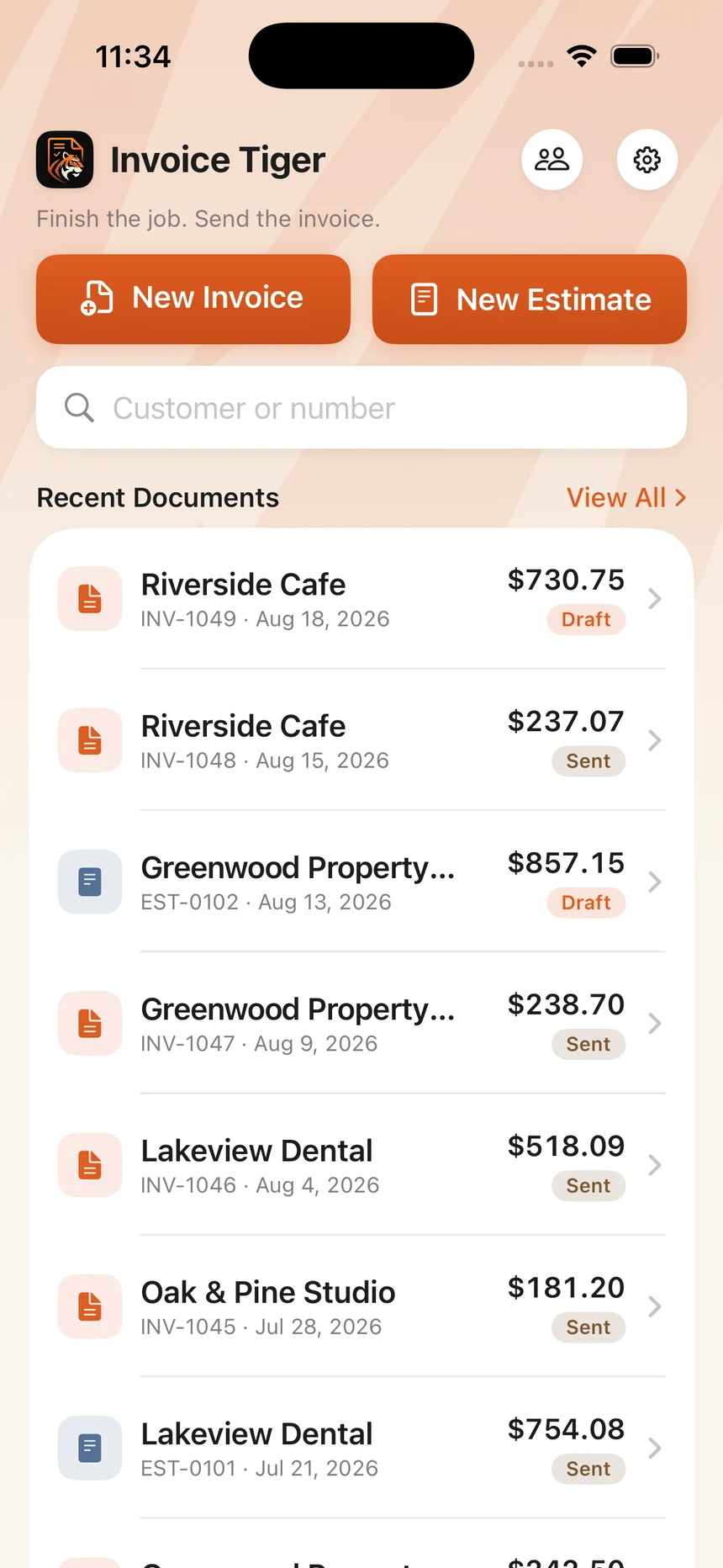
Step 1: Tap New Invoice
The home screen opens on the two things you came to do: New Invoice and New Estimate. Your recent documents sit underneath, each marked Draft or Sent, with a search field for a customer or number.
Step 2: Choose the customer, then add the work
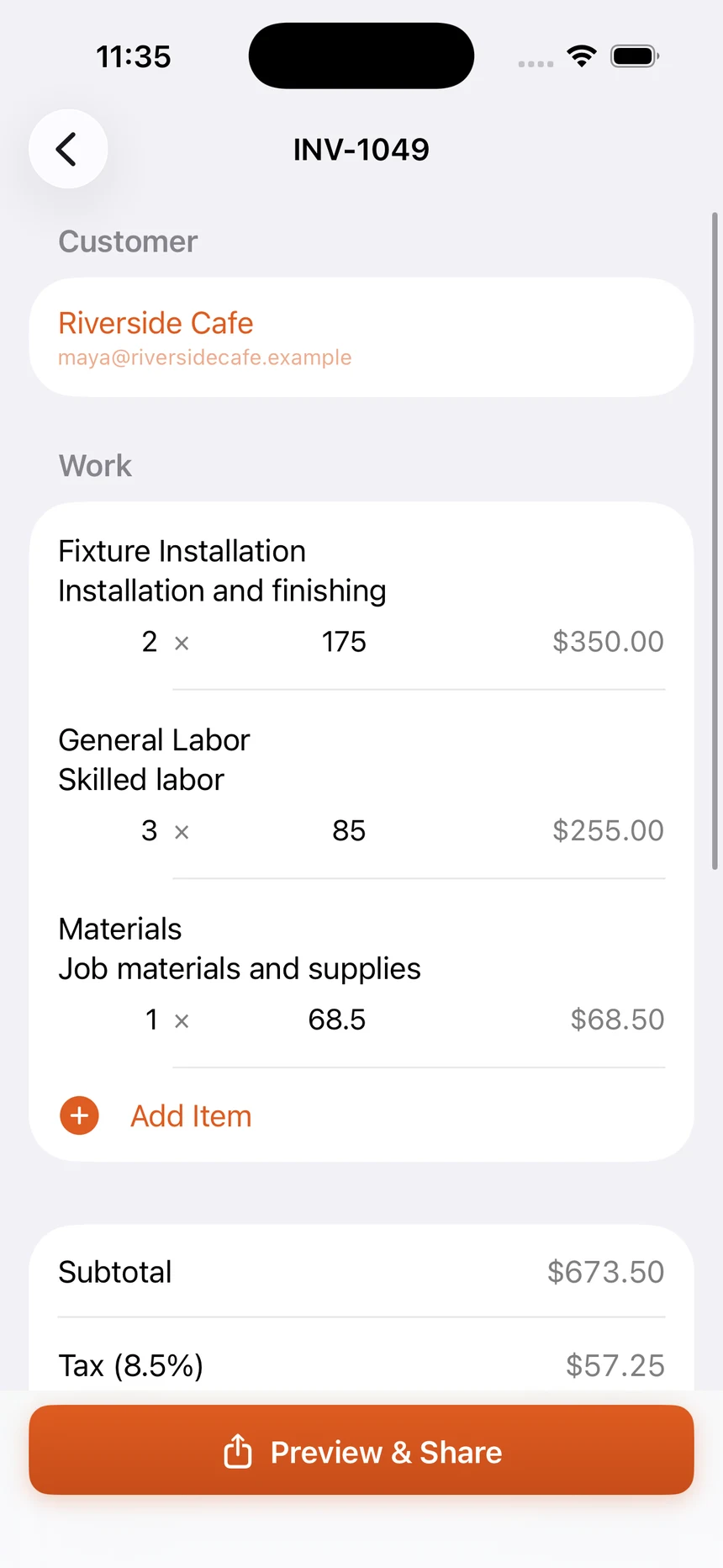
Tap Add Customer and pick someone you have billed before, or add someone new from the same list — type their name and add them in one tap, or open the full form for their email, phone and address. Once the invoice has a customer or a line, it gets the next number in sequence.
Then tap Add Item under Work. Quantity and price are edited right on the line, and the subtotal and tax update as you type.
Step 3: Pick saved work, or add a custom item
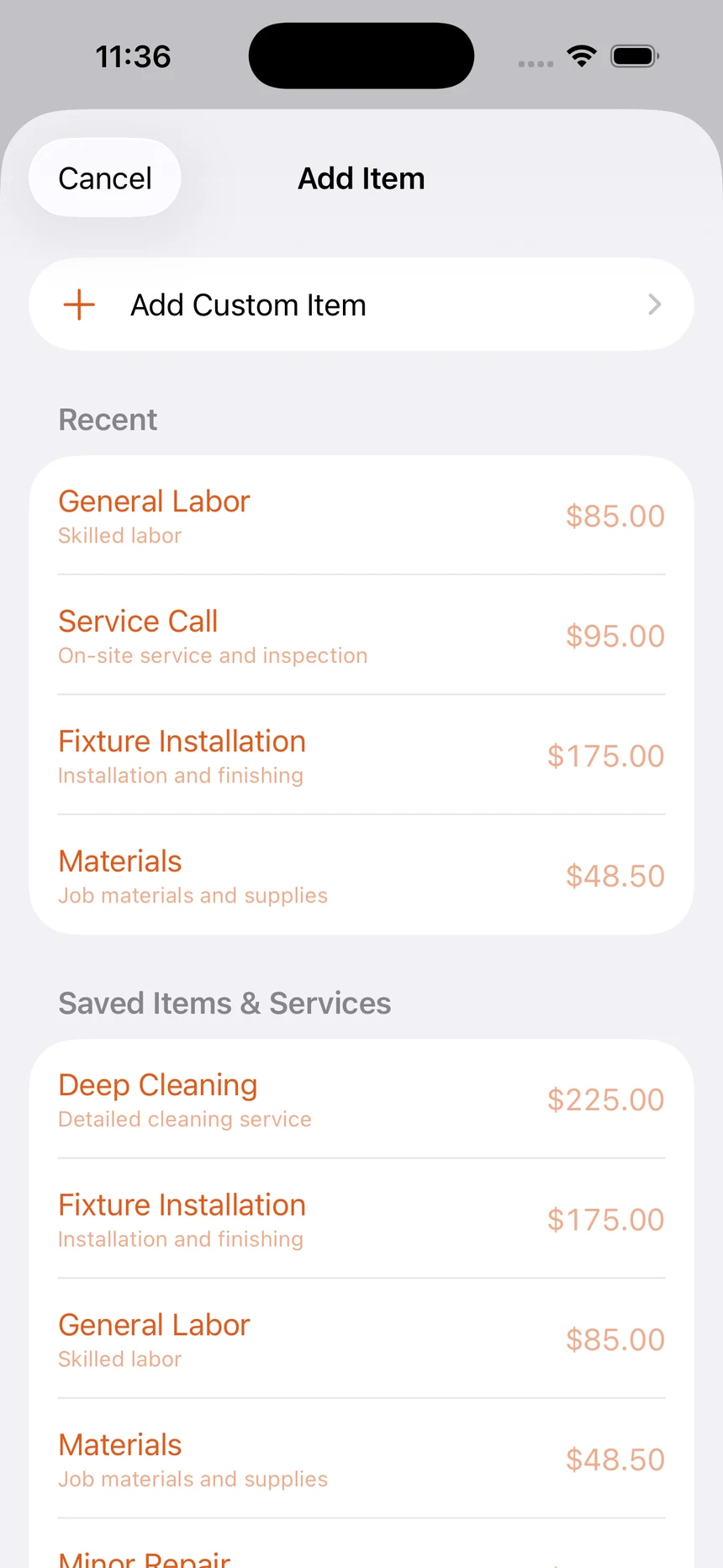
Add Item lists your recent and saved items and services with their usual prices; tapping one adds it to the invoice. Add Custom Item is for anything new — a description, a quantity and a price — with a switch to save it for next time. A saved price is a default, not a rule: change it on one invoice and the saved version stays as it was.
Step 4: Preview the PDF, then share it
Tap Preview & Share at the foot of the editor and the PDF renders on the phone: your details, the customer, the work, the totals and your payment instructions. The due date, tax rate, notes and payment instructions are in the editor’s Details section if you need to change them first.
The share button at the top right opens the standard iOS share sheet — Messages, Mail, WhatsApp, AirDrop or Files. Once it has gone to the customer, the invoice is marked Sent and locked; cancel the share sheet and it stays a draft you can edit.
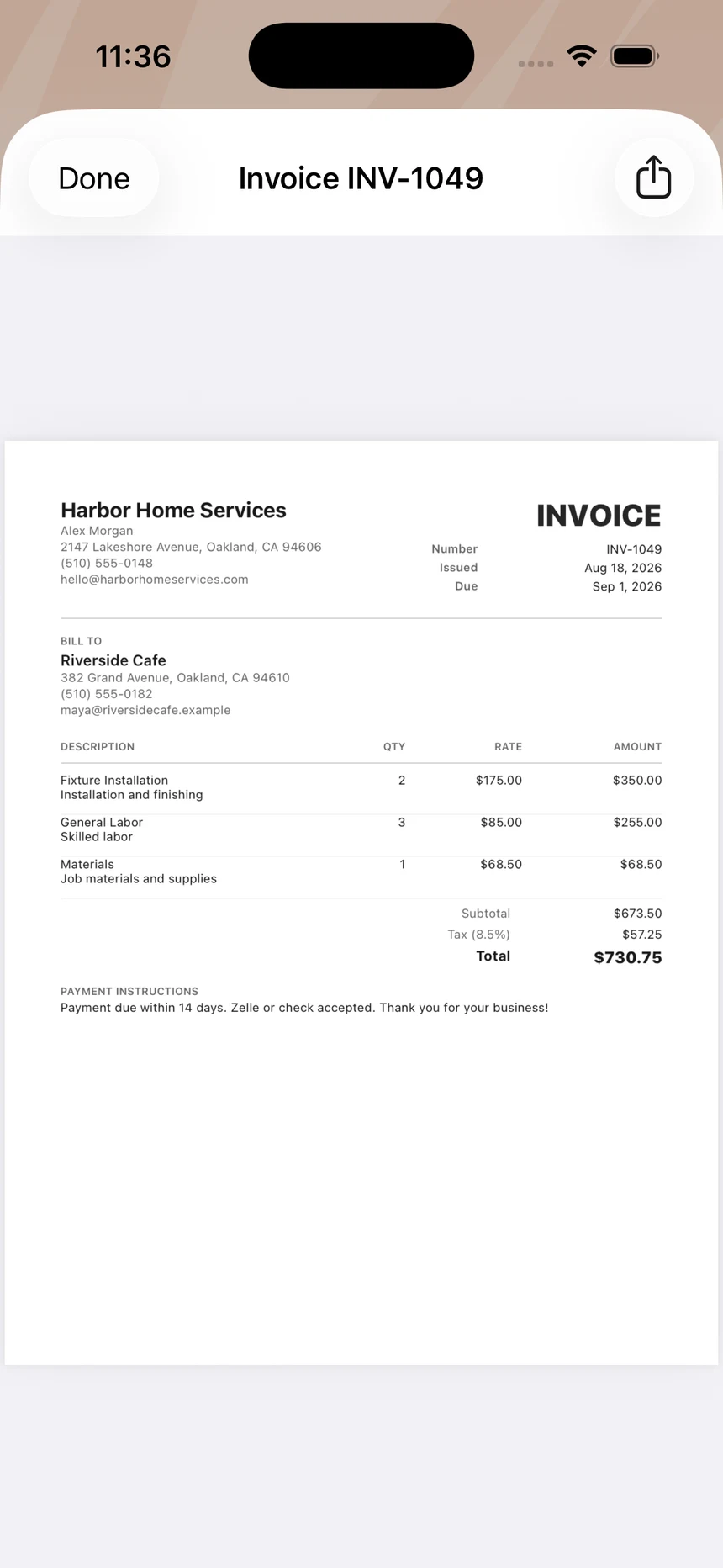
Before you have subscribed, the preview of an invoice you have not yet shared carries a “Preview only” label. It is not on the PDF the customer receives, and no Invoice Tiger branding is either. If the PDF is going out by text, sending an invoice by text shows what the customer actually receives in Messages.
What it costs
Making drafts, saving customers and services, and searching your history are free. Sharing or exporting is free for your first five invoices or estimates — a one-time allowance, not one that resets each month — and after that it needs a subscription ($5.99 a month or $49.99 a year on the US App Store). An invoice you have already sent can always be shared again. Whether the app fits the rest of how you work — and what it deliberately leaves out — is on the iPhone invoice app page.
First five sends free, then $5.99/mo or $49.99/yr
Whichever method you use
- Keep your own copy. The PDF you sent, not the draft you edited afterwards. If a query comes up, you want the exact document the customer is looking at.
- Name files predictably.
Invoice-1042-Acme.pdfsorts, searches and forwards sensibly.invoice final v2.pdfdoes not. - Send it the same day. The work is fresh for both of you, and same-day invoices get paid faster than identical ones sent a week later.
Once you have the PDF, getting it to the customer is the easy part — sending an invoice by text covers the version most domestic customers prefer.
Sources
- Apple Support — Use templates in Pages on iPhoneThat Pages on iPhone opens with a template chooser, that predesigned templates can be modified, and that customised versions can be saved back into the chooser as your own templates.
- Apple Support — iPhone User GuideiOS sharing behaviour — the share sheet, and sending files through Messages and Mail.